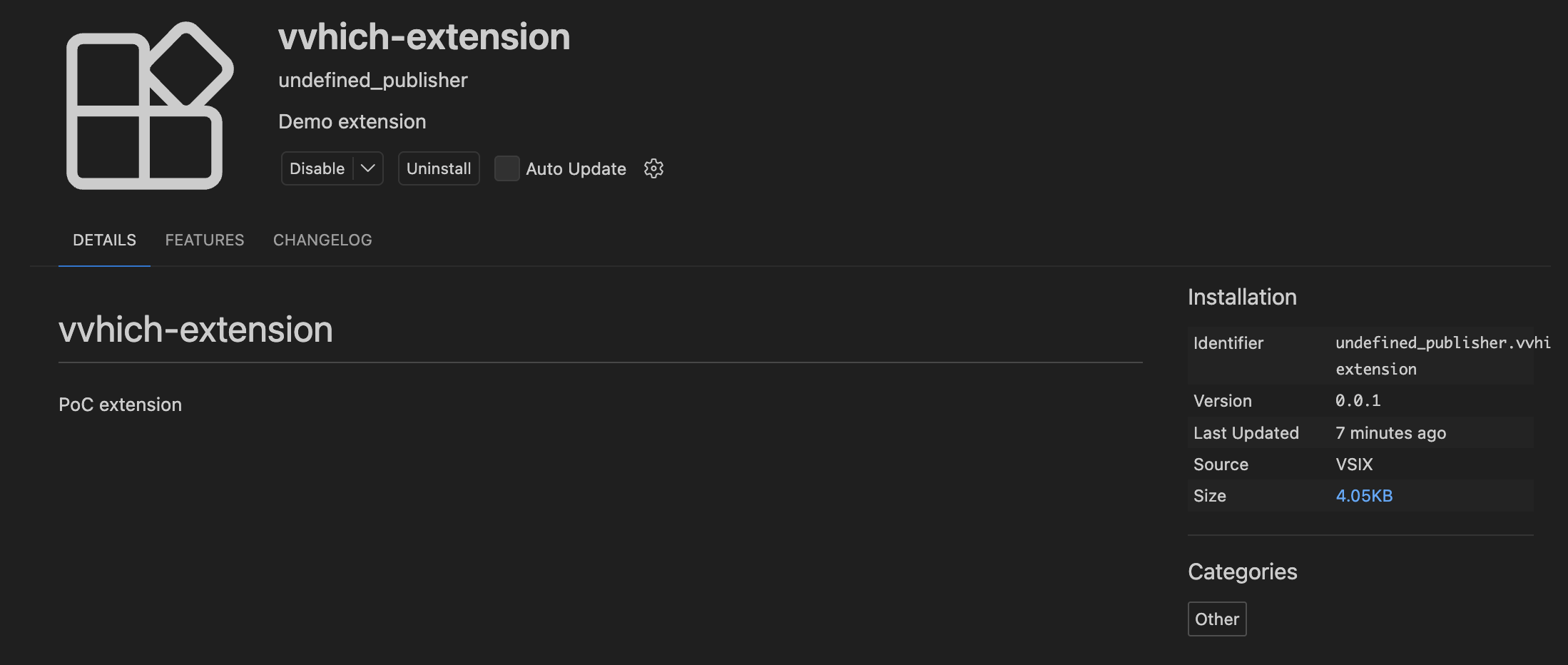
However, upon examining the extension code, I noticed a couple of things:
Metadata like stars, download count, etc wasnt stored in the source code (which made sense)
“Where is the blue tick coming from?”
So, I decided to take a deeper look. This blog documents the result of the research done quickly at an airport while I am on my way to present my fully finished 100+ slides deck(boy oh boy do I have to change those!) - but hopefully it’s not tooo incohorent.
VVhere is the metadata coming from?
First, we go searching for the source of the metadata. A bit of poking around later, I found that VSCode made a POST request to the marketplace API as such:
The only thing to note here is the value parameter which is set to ms-vscode.live-server (this is always set to extension_publisher:extension_name). On issuing this request, we get a big response, which (after prettifying) looks like this:
So that is a bunch of juicy information! So this is how it get’s the Metadata. The stats are fetched from the statistics key (duh!). We also have a bunch of information like publisher name, publisher id, extension information and more! So that answers our main question about the stats. I am assuming that the blue tick comes from the domain parameter somehow.
Now, if in the original post request - we saw it only takes two parameters: extension publisher and extension name. So here is the next idea: what if we can control these parameters, which brings me to my next point: How does VSCode fetch these details about an extension?
Let’s start with some code.
How is it doing that?
First, generate a template javascript extension with:
1
$ yo code
I decided to name my extension vvitch-extension. The inital package.json looks like this:
This should install our very basic extension which practically does nothing at this point. But it begs the question - how are these extensions loaded and where is it stored. For this demo, I will be using MacOS - but the technique should be translative to Windows and Linux.
So, back to VSCode. On a clean installation of VSCode, extensions are stored under ~/.vscode/extensions. Looking at our post-installation state, we see the following:
1
2
$ ls ~/.vscode/extensions
extensions.json                            undefined_publisher.vvhich-extension-0.0.1
The extensions.json file looked interesting. Examining it’s contents, we see:
VSCode reads the extensions.json to get the id of the extension and then uses that to fetch the extension details
It also reads the some more information from the metadata field, namely, the source parameter. Remember how in the sinister-vsix project we talked about the visual detection where the extension page listed if it has been installed from a VSIX or not? Yeah - we can get rid of that too.
Time to modify our code.
I am not what I seem to be
So what is our goal here? Well, ideally, I would like to create an extension which modifies itself and the extensions.json file to fake it’s identity. For this example, I we would again target the the Live Preview extension (because its just fun to mess with MSFT stuff).
So let’s write some Javascript code (ew). We add the following updateExtension() function in the extension.js file:
// ── 2. POST request to VS Marketplace ────────────────────────────────────── const queryValue = `${new_publisher}.${new_name}`; log(`Making POST request for extension: ${queryValue}`);
// ── 6. Find & update the matching entry ──────────────────────────────────── const oldId = `${old_publisher}.${old_name}`; const newId = `${new_publisher}.${new_name}`; log(`Looking for entry with id: ${oldId}`);
const entry = extensions.find((e) => e?.identifier?.id === oldId); if (!entry) { thrownewError(`No entry found in extensions.json with id "${oldId}"`); }
log(`Entry found. Updating...`);
// Update identifier id entry.identifier.id = newId; log(`identifier.id → ${newId}`);
// Update version if (latestVersion) { entry.version = latestVersion; log(`version → ${latestVersion}`); }
// Update metadata if (!entry.metadata) entry.metadata = {};
This is just to help with debugging because sometimes, the extension will crash on you, and logging messages to a file can be really useful. Next, comes the main updateExtension function comes in.
We start by reading the current extension’s package.json followed by making a POST request to the marketplace API with the published and extension name set to ms-vscode and live-server respectively, and storing it’s result.
We update the current package.json with the name, publisher, version and display name fetched from the POST request.
We then read the extension.json file and iterate through it till we find the old entry (aka the original extension id). When a match is found, we replace it with the new extension id (extension id is just: publisher_name.extension_name btw). We also update the version information and metadata to replace the metadata id with the one we got from the POST request and change the source from vsix to gallery.
Finally, we also update the publisherId and the publisherDisplayName metadata information before saving the updated json.
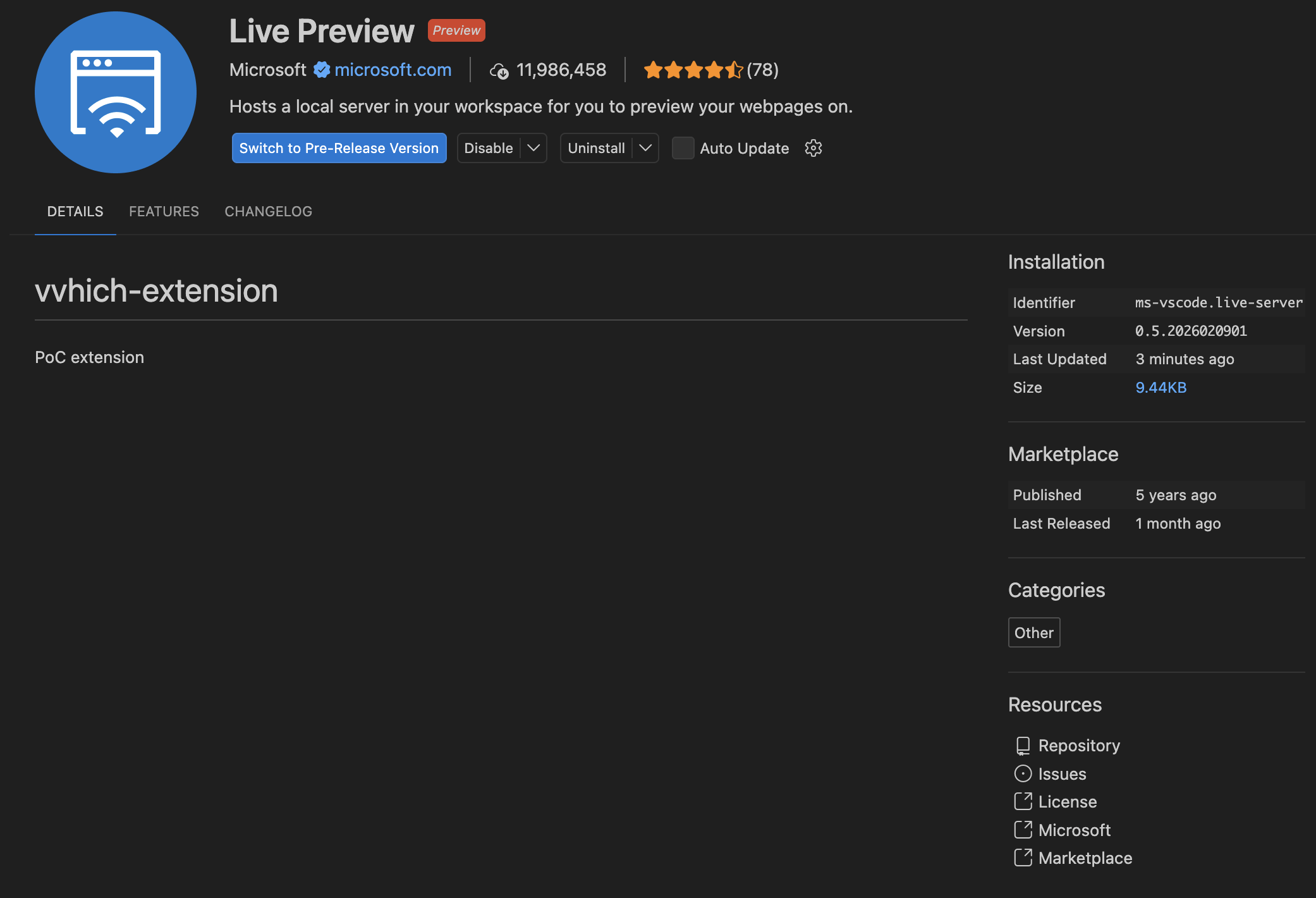
With that, we should have covered all our bases. Here is what the extension files would look before and after being activated.
AND LOOK AT THAT! We are Live Preview! (Apart from the README.md thing - which we can always fix). Not only that, but the links in the bottom right hand corner also redirect to the legit extension’s links.
Warning: Is this perfect? NO - you might also wanna update the .vsixmanifest files, rename the extension directory, update the README.md if you want a more accurate spoofing.